
What Is Ion TV?
Ion TV is a live TV and live sports app for Android. It puts live channels, live sports events, movies, series, news and kids programming into one player, so the viewer picks a broadcast and watches it on a phone, a tablet or a television.
The app is built around a guide. Categories sit at the top level, channels and events sit inside them, and the player opens from the guide. There is no sign-up step before watching, and the guide is the whole front door: pick a category, pick a broadcast, watch.
Ion TV suits viewers who follow live sport and Indonesian television, and who want the match or the channel without a subscription form first. Everything below follows the guide as it actually presents itself, category by category.
Live Sports on Ion TV
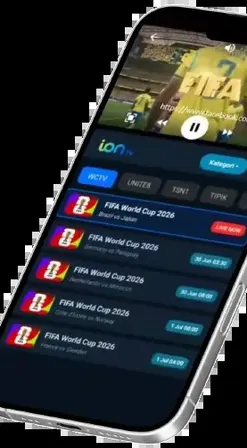
Live sport is the centre of Ion TV. Football, cricket, basketball, rugby and tennis all appear in the guide, with live events listed under Events so fixtures, times and replays sit together.
For a match night, the routine is simple. Open Events, find the fixture, and check the links offered for it. Multiple links can carry the same broadcast, so if one link struggles, another can carry the same match. Highlights and replays are part of the offer too, for viewers who arrive after the start.
Pick the fixture before the player opens. The guide shows the event and its time, so the choice is made in the list, not in the player.
Notifications can flag upcoming events, which helps when a fixture starts while the phone is in a pocket. The habit that works best is to set the reminder, open the guide a few minutes early, and let the lists finish loading before tapping anything.
Channels and Categories
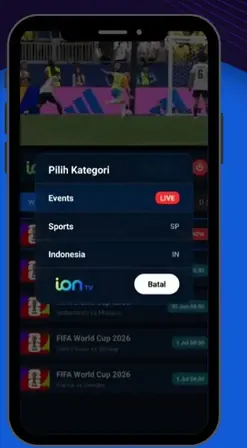
The guide is organised into seven categories: Events, Sports, Indonesia, Kids, Blockbuster, News and Knowledge. Events gathers live fixtures with their times. Sports gathers the sports channels. Indonesia gathers the Indonesian channels. Kids, Blockbuster, News and Knowledge cover the rest of the evening.
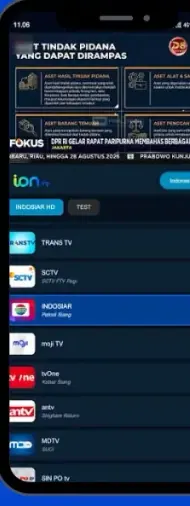
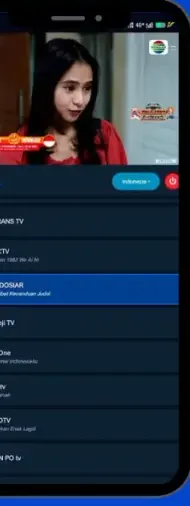
Channel names shown in the guide art include TRANS TV, SCTV, INDOSIAR, MOJI TV, tvOne, ANTV, MDTV and SIN PO TV. The list a viewer sees on the day depends on the live listings, and the category picker is the fastest way through it: choose the category first, then the channel, instead of scrolling the whole guide.
Live fixtures with times, gathered in one place so a match is found before it starts.
The sports channels, for football, cricket and the other live sports in the guide.
Indonesian channels in one list, without hunting through the full guide.
Cartoons and kids programming, kept in its own category.
Movies and series, for evenings that are not about live sport.
News channels, for headlines and live coverage through the day.
Factual and knowledge programming, in its own corner of the guide.
Devices: Phone, Tablet and Television
Ion TV runs on phones, tablets and smart televisions, with the same guide and the same categories on each screen. A match started on the phone can continue on the television, and the category picker works the same way on the big screen.
On a phone, the guide is a scrolling list and the player fills the screen. On a tablet, the extra width makes the category picker easier to read. On a television, the guide becomes the evening planner, and the remote or controller moves through the same categories. The advice is the same on every screen: let the lists load, pick the category first, and keep the player controls in mind before the broadcast starts.
How Watching on Ion TV Works
Watching on Ion TV follows the guide. The steps below are the whole routine, and they stay the same whether the screen is a phone, a tablet or a television.
Open the app and let the category lists load. The guide is the home screen, and rushing it is the usual cause of a wrong tap.
Choose Events for a live fixture, Sports for a sports channel, Indonesia for an Indonesian channel, or one of the other categories for the rest.
Scroll inside the category, read the names and the fixture times, and tap the broadcast to open the player.
If the picture struggles, try another link for the same broadcast, or drop to low quality mode and keep watching.
Main Features
Ion TV keeps its feature list short and tied to watching. The player, the guide and the links do the work, and the extras exist to keep a broadcast watchable on a phone connection.
More than 250 live TV channels, gathered into categories in one guide.
Football, cricket, basketball, rugby and tennis, with fixtures, highlights and replays.
Keep a broadcast playing in a small window while another app is used.
A force low quality mode for slow connections, trading sharpness for a steady picture.
More than one link for a broadcast, so a struggling link is not the end of the evening.
Reminders for upcoming events, so a kick-off is not missed.
Watching starts without an account step, straight from the guide.
Films and series sit alongside the live channels, in the Blockbuster category.
Picture Quality and Data Use
Ion TV streams in HD where the connection allows it, and the force low quality mode exists for the opposite case: a slow connection, a weak signal, or a data plan that needs protecting. Dropping the quality keeps the broadcast moving instead of stopping to buffer.
Live video uses data quickly, and a full match is a long stream. On mobile data, low quality mode is the sensible default, and picture in picture is worth using only when the broadcast is the second thing on the screen. On Wi-Fi, the higher quality setting gives the bigger screen the clearer picture it deserves.
- Use low quality mode on slow connections and on mobile data.
- Let the lists load before tapping, so the wrong broadcast does not start a second stream.
- Close other streaming apps while a match is on, so the connection serves one broadcast.
How to Install Ion TV on Android
Installing Ion TV follows the usual route for an app installed from a file. The steps below are written for a first install on a phone, and they work the same way on a tablet.
Use the download page on this site. The version 1.1.11 file (17.85 MB) is linked there, and the button appears after the countdown.
Android asks for permission the first time a file from outside the store is installed. Allow it for the browser or file app being used, and only for that install.
Tap the downloaded file and follow the install prompts. The app icon appears with the other apps when the install finishes.
Open Ion TV, let the categories load, and pick a channel. No sign-up step stands in the way.
Troubleshooting
Most Ion TV problems are guide or connection problems, and most of them clear with the same short routine.
- Guide looks empty: wait for the lists to finish loading, then pull the list down or reopen the app and let it load again.
- A broadcast will not play: try another link for the same broadcast, then try low quality mode before giving up on the evening.
- Buffering during a match: drop the quality, close other apps that use the connection, and move closer to the Wi-Fi source if one is available.
- App will not install: check that installs from the source used are allowed, and that enough storage is free on the phone.
- Wrong channel opened: go back to the guide, pick the category first, and tap only after the lists have loaded.
Safety and Verification
Every file linked from this site is checked before it goes up: the file details are read from the listing, the package and version are recorded in the APK details table, and the install steps on this page are the steps used to check the app on a real phone.
The file details for Ion TV in the table come from the file listing itself, including the package name and the minimum Android version. Where a detail could not be verified, it is left out rather than guessed. The size is one such detail: listings for this build disagree, so no single size is stated anywhere on this site.
Pros and Cons
Ion TV is easy to judge, because its strengths and its limits are both visible in the guide.
Live sport and Indonesian channels in one guide, with no sign-up step. Multiple links and a low quality mode keep broadcasts watchable on ordinary connections. Picture in picture, notifications and replays round out the watching experience.
The guide depends on live listings, so a channel or fixture that is not listed cannot be opened from the app. Live video uses data quickly, and the picture quality follows the connection. The app is a player for live broadcasts, not a library to browse offline.
How to Update
To update Ion TV, install the newer file over the existing app. The settings and the guide position carry over, and the app opens on the same categories as before. If the newer file is not yet linked on the download page, the current install keeps working as it is, and the APK details table on this page shows the build described here.